Missing Street Number Rule
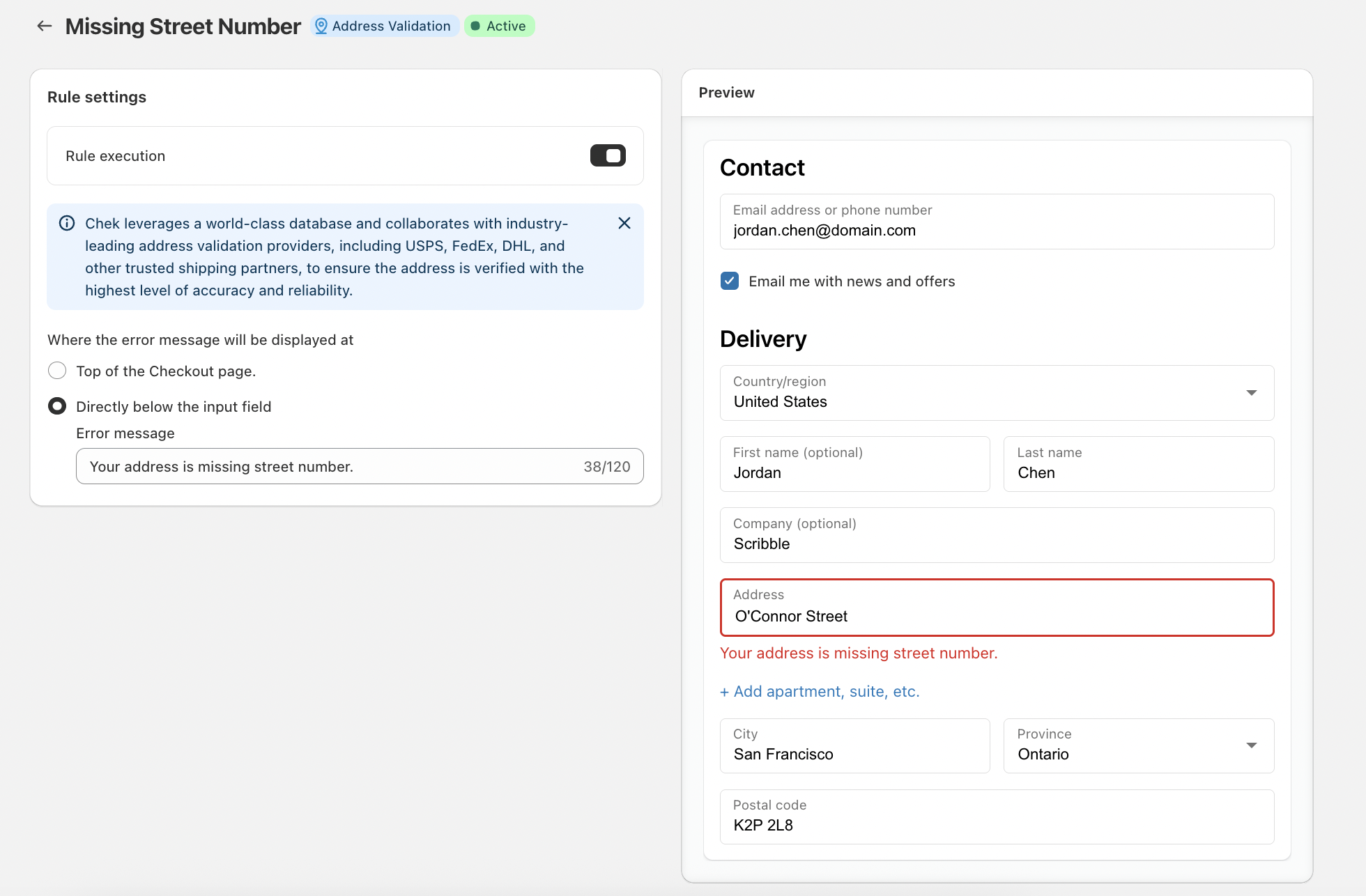
The Missing Street Number rule helps you identify checkout addresses that do not include a street number. You can configure this rule to display a custom error message and choose where the message appears on the checkout page.
How to Configure the Rule
- From your Shopify admin, open Chek: Address Validator.
- Go to Checkout Rules.
- Select the Missing Street Number rule.
- Turn on Rule execution to activate the rule.
- Choose where you want the error message to appear:
- Top of the Checkout page
- Directly below the input field
- Enter your preferred message in the Error message field.
For example:
Your address is missing street number.
The custom error message can help customers understand what needs to be corrected before they complete their checkout.
Address Validation Providers
Chek uses a world-class address database and works with industry-leading address validation providers, including USPS, FedEx, DHL, and other trusted shipping partners, to help verify addresses with a high level of accuracy and reliability.
Customize the Error Message
You can customize the error message to match your store's tone or provide clearer instructions to customers.
For example:
Your address is missing street number.
Or:
Please enter your street number to continue.
Once the rule is active, Chek will apply the configured validation rule during checkout and display the error message according to your selected settings.
If you have any further questions about address validation or how Chek processes addresses, please contact our support team at [email protected].