Set Up Checkout Rules
The Checkout Rules feature in Chek: Address Validator helps you validate customer address information during checkout and prevent orders with unsupported or incomplete addresses.
You can create rules based on your shipping requirements, such as requiring a street number, requiring a street name, or restricting certain characters in customer addresses.
Access Checkout Rules
- From your Shopify Admin, open Apps.
- Select Chek: Address Validator.
- Click Checkout Rules.
- Choose the rule you want to configure.
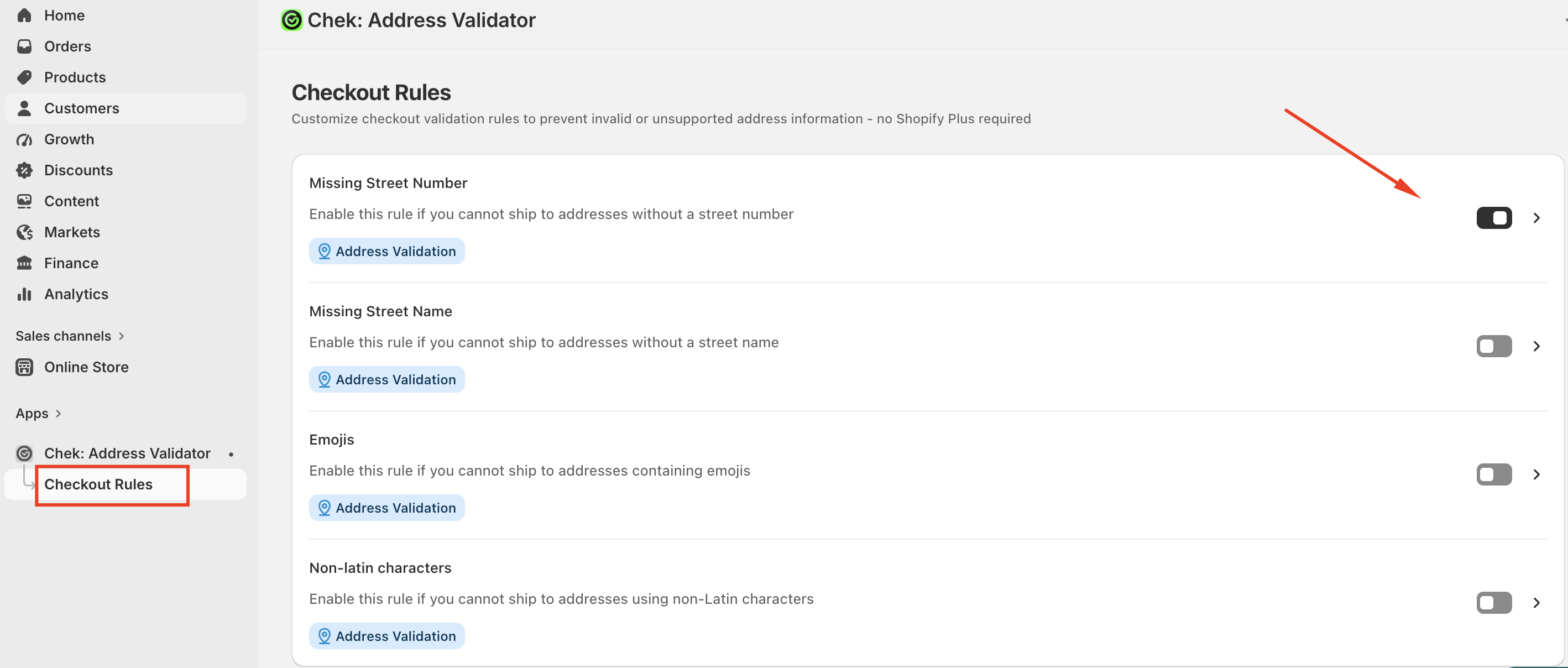
Available Checkout Rules
Missing Street Number
Enable this rule if you cannot ship to addresses without a street number.
When enabled, Chek checks the customer's address during checkout and can prevent an address from being accepted if the required street number is missing.
Missing Street Name
Enable this rule if you cannot ship to addresses without a street name.
This helps ensure customers provide a complete street address before placing their order.
Emojis
Enable this rule if you cannot ship to addresses containing emojis.
Chek will validate the address and prevent customers from using emojis when they are not supported by your shipping or fulfillment process.
Non-Latin Characters
Enable this rule if you cannot ship to addresses using non-Latin characters.
This can be useful if your shipping carrier or fulfillment system requires addresses to use Latin characters only.
How to Enable a Rule
To enable a rule:
- Open Checkout Rules in Chek.
- Find the rule you want to use.
- Turn on the toggle next to the rule.
- Click the rule to review or configure its settings if additional options are available.
Once enabled, the rule is applied during checkout to help validate the customer's address information.
Please don’t hesitate to contact us at [email protected] if you need any assistance.